If you’ve touched D365 F&O security and licensing recently, you probably know the struggle. You have a role that’s just a bit too powerful and suddenly that user needs a more expensive license. Then you end up manually checking the Licenses usage summary form and removing duties and privileges one by one, trying to squeeze everything back into the right license level.
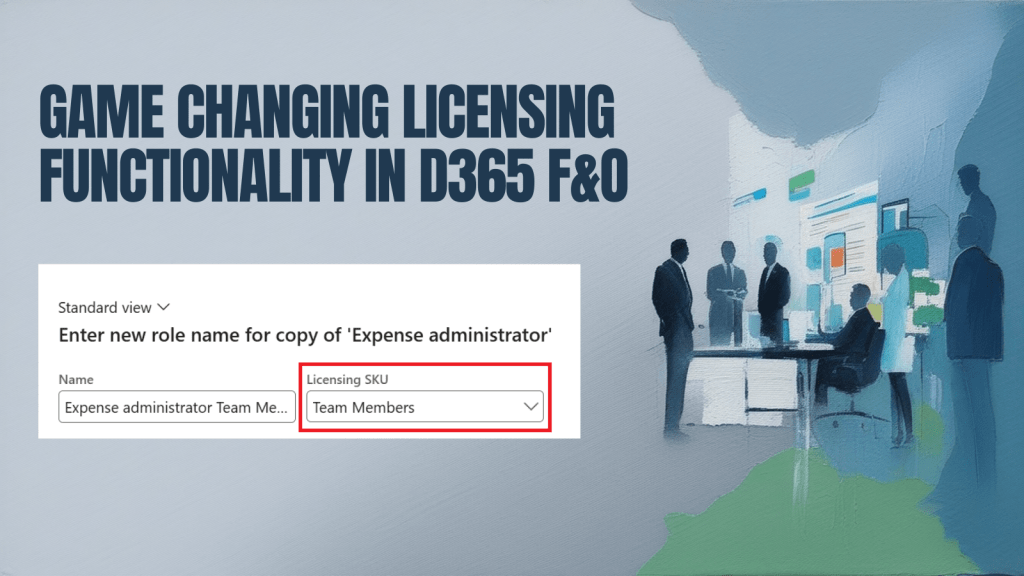
With the latest D365 F&O Proactive Quality Update – 10.0.44 (Platform release PU68 7.0.7606.184), as well as in version 10.0.45, Microsoft quietly added a feature that completely changes this. When you duplicate an existing role, you can now select a Licensing SKU and F&O will automatically trim the role so it stays within that license.
On top of that, the system generates an Excel file with a clear list of all removed duties and privileges, so you can review exactly what changed.
In this post, I’ll walk you through how it works and how you can use it to build license-friendly roles much faster and with far less manual work.
How to use the Licenses usage summary to spot expensive roles?
In this blog post, I’ll use the Expense administrator role as an example. The specific role isn’t important – the goal is to show how the new licensing functionality works in general. You can follow the same steps with any other role and here’s the best part: it also works with your custom roles.
In System administration → Security → Security governance → Licenses usage summary, you can see that the Expense administrator role requires a Project Operations license, as shown in the screenshot. Only licenses where the Not entitled value is equal to 0 actually cover access to all the objects under that role. And as you know, the Project Operations license is a pretty expensive one – so what if your users don’t really need it?

This role currently covers 464 objects when using the Project Operations license. But your users might be perfectly fine with slightly fewer objects – for example 452, which is the limit for a Team Members license. Given the huge price difference between these two licenses, it’s definitely worth trying to see whether the role can be trimmed down to fit under Team Members.
How to change the role to fit a cheaper license?
Once you’ve identified that the Expense administrator role is using the Project Operations license, the next step is to create a cheaper, license-friendly version of that role.
Go to System administration → Security → Security configuration, select the Expense administrator role, and click Duplicate. In the dialog that opens, enter a new name like Expense administrator Team Member and in the Licensing SKU field, select Team Members.
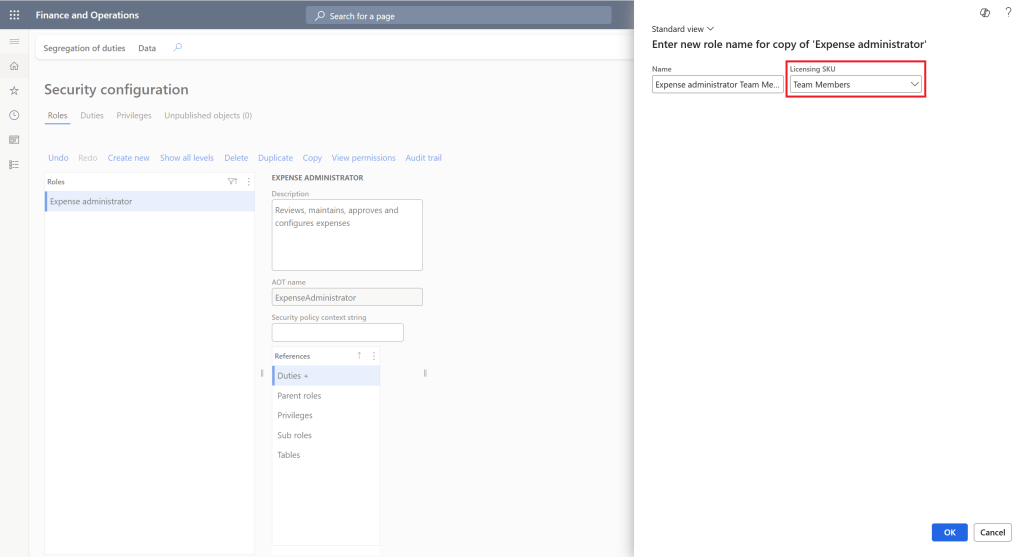
When you confirm, F&O will create a copy of the role and automatically remove any duties and privileges that require a higher license than Team Members. The original role stays untouched, and you get a new version that is aligned with the cheaper license.
How to check what has changed?
Once the role is duplicated with a selected Licensing SKU, the system automatically evaluates all references (duties and privileges) and removes anything that doesn’t comply with the selected license level.
Right after the process, you’ll see a message at the top of the screen saying “Some references were excluded”. This simply means that some parts of the original role required a higher license than the one you selected (for example, higher than Team Members), so they were not copied over to the new role.

To make this process transparent, the system generates a downloadable Excel report listing all excluded references. You can access it by clicking the Download report link on the right-hand side. The file gives you a clear overview of which duties or privileges were removed, helping you quickly review what was changed.

Once you’ve reviewed all the changes, don’t forget to publish the newly created role.

What’s next?
Within 2 to 8 hours, the change will appear in the Licenses usage summary report. At that point, you can validate that the new role is correctly classified under the Team Members license.

I highly recommend making this change in a UAT/preprod environment first. After publishing the trimmed role, assign it to the users who previously had Expense administrator, remove the old role, and ask them to run their normal end-to-end scenarios in UAT/preprod. Once the users confirm there’s no regression, roll the change into production.
In practice, most users don’t use the full surface area of the original role. A reduction from 464 to 452 objects is typically invisible to them unless a truly critical permission is removed — which is exactly what your UAT testing will catch.
 Dynamics Lab
Leave a comment